Zero-Footprint DICOM Viewer Examples for Browser Access and Physician Workflows
What if physicians could open DICOM studies in a browser without installing a dedicated viewer on every workstation? That is the central idea behind implementing a zero-footprint DICOM viewer: browser access replaces a locally installed viewing application, while the imaging system still manages how images and related data reach the screen. “Zero footprint” describes the workstation setup, not the absence of data processing or network requirements.
Easy access is only part of the equation. A smooth browser experience also depends on image delivery and how the viewer fits into clinical work. This article explains what zero footprint means, how browser-based DICOM viewing works, and which configuration choices can support physician workflows. Practical examples cover image loading, hanging protocols, and related information, helping you assess the approach for your imaging environment.
Key Takeaways
- Distinguish browser-based access from the image processing and data delivery that still happen behind the scenes.
- Trace how image data can move from the imaging system through a middle-tier server to the viewer.
- Configure image presentation around physician tasks, including useful initial images and appropriate hanging protocols.
- Use realistic study and network scenarios to assess whether viewer performance supports day-to-day reading workflows.
What is a zero footprint DICOM viewer?
A zero-footprint DICOM viewer displays diagnostic images in a browser without requiring a dedicated viewing application installed on each workstation. “Zero footprint” describes the local installation, not the infrastructure: servers still retrieve, process, and deliver image data. The browser can show images alongside study details, while a middle-tier server transcodes image data for delivery.
Browser viewing relies on web technologies. HTML5 and WebSockets can support communication between the browser and imaging services. DICOMweb adds common request patterns: QIDO-RS searches for studies, series, or instances; WADO-RS retrieves images and related resources; STOW-RS stores DICOM objects. Together, these services support finding, displaying, and sending imaging data through web-based workflows.
Open-source options include OHIF, a web-based medical imaging viewer project. Its repository lists @ohif/ui@3.6.0-beta.1 as an example beta package version. Compare projects by their application scope, interface components, customization needs, and maintenance requirements; a package version alone doesn’t establish which option fits a particular workflow.
Build, hosting, and maintenance costs depend on the viewer’s features, image volumes, server capacity, security controls, integrations, and ongoing technical support. These factors determine the resources required, so one cost figure cannot represent every implementation.
Situation: A radiologist needs to review a study in a browser while a colleague works elsewhere. Action: The viewer requests study data, then displays the delivered images and metadata. WebSocket connections can carry images and other data, including metadata, to a data manager. Result: Both clinicians can access browser-based viewing, while collaboration depends on configured permissions and workflow features.
A data manager may handle image-pixel caching, metadata storage, non-image storage, priority management, and decompression. These components coordinate delivery and display, but do not eliminate network or server dependencies. When implementing a zero-footprint DICOM viewer, assess image retrieval, browser rendering, and the intended physician workflow together.
Meaning of zero footprint and browser-only access
“Zero footprint” means a workstation can open imaging studies without a dedicated viewer installed locally. It does not mean there is no infrastructure: the browser still needs network access, an imaging system, and services that deliver authorized data. The browser provides the interface while remote systems manage retrieval and image processing.
Situation: A referring doctor needs to review a study on a phone between appointments. Action: A browser-based viewer presents the images and relevant study information in a layout suited to a smaller screen. Result: The doctor can access the study without installing a workstation-specific viewer, while the clinical system continues to serve the images.
Non-DICOM content may also be important. A physician reviewing a DICOM series alongside a report or another document needs a workflow that brings those items together, rather than treating the image as the entire record. The system must recognize each content type and present it appropriately. This distinction helps teams plan browser access to imaging and supporting information.
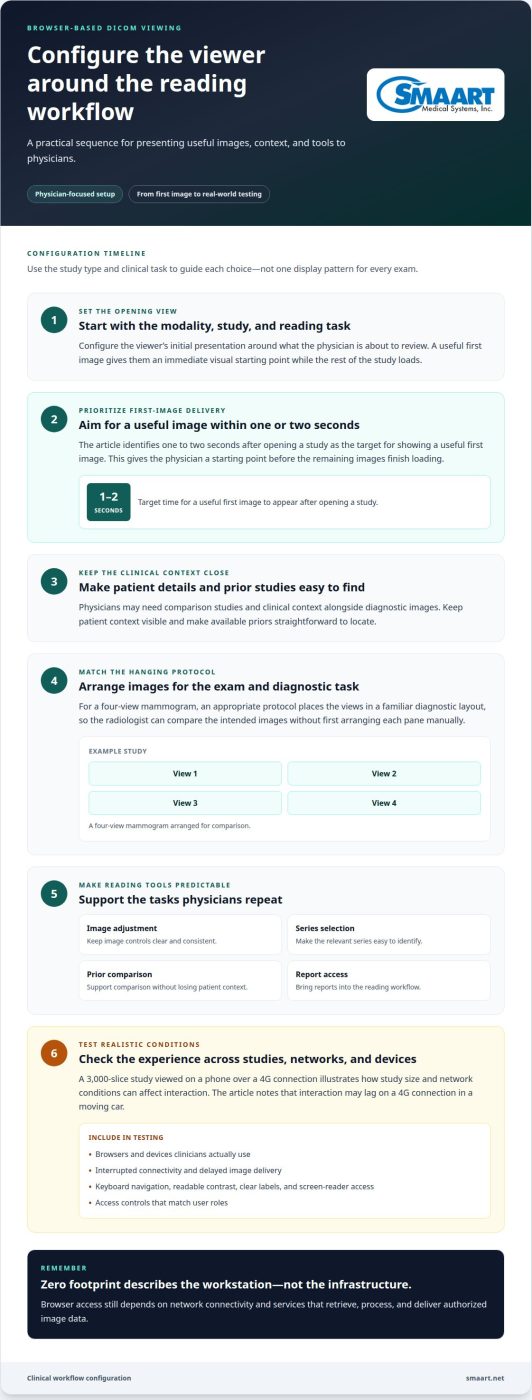
Situation: A remote radiologist opens a large study over a mobile connection. Action: Server-side rendering can prepare images for browser delivery; a phone displaying a 3,000-slice study illustrates this approach. Result: Remote reading becomes possible, though interaction may lag on a 4G connection in a moving car. The network and study size shape the experience.
Physician access and patient access serve different purposes. A physician may need diagnostic images, comparison studies, and clinical context; a patient-facing view may focus on sharing or reviewing selected information. Separate access paths and permissions help align each experience with its intended users.
Key implementation risks include interrupted connectivity, delayed image delivery, and access controls that don’t match user roles. Support keyboard navigation, readable contrast, clear labels, and screen-reader access; test the viewer across the browsers and devices clinicians actually use. For organizations aligning browser access with broader imaging workflows, integrated imaging workflows are a practical consideration.
Viewer configuration and physician workflows
A viewer should support physicians’ decisions, not merely display images. Configure its opening view around the modality, study type, and reading task. A useful first image should appear within one or two seconds of opening a study, giving the physician an immediate visual starting point while the rest loads. Make patient context and available prior studies easy to find as well.
Situation: A radiologist opens a four-view mammogram. Action: An appropriate hanging protocol arranges the views in a familiar diagnostic layout. Result: The physician can compare the intended images without first arranging each pane manually. Protocols should reflect the exam and reading task instead of applying the same display pattern to every study.
Diagnostic reading also relies on practical tools and predictable navigation. Configure image adjustment, series selection, comparison with prior studies, and report access around clinicians’ tasks. Keep controls clear and consistent throughout the browser platform. For example, when moving from a current chest study to an earlier exam, a radiologist should be able to identify both series and compare them without losing patient context.
Situation: Imaging Associates needed physicians to access patient reports through an enterprise viewer. Action: The organization implemented a new PACS/RIS solution in April 2014 to manage medical images, reports, and other outpatient data. Result: Physicians using the enterprise viewer could access patient reports within two hours. This example shows how image viewing connects to the broader reporting workflow.
PACS workflow flexibility matters when departments follow different reading patterns. Configure relevant views for each modality and clinical task while keeping study retrieval and reporting connected. Then test the full path: open a study, review its images, locate a prior, and access the associated report. A focused workflow test can reveal unnecessary navigation before physicians use the platform routinely.
Zero-footprint DICOM viewer definition
A zero-footprint DICOM viewer is a browser-based application for viewing medical images without installing its dedicated viewer on each workstation. The phrase describes the client device, not the entire system. A browser still communicates with imaging services, and servers may retrieve, prepare, and deliver image data. The key distinction is where the viewing application runs, not whether infrastructure is required.
For example, a radiologist opens a CT study through a browser. The browser requests the study, and server-side services prepare images for display. DICOM Supplement 228 defines services for volumetric rendering performed on the server. This approach can shift demanding rendering tasks away from the workstation, while leaving image delivery and interaction dependent on the server and network.
Situation: A team needs to assess how a browser viewer handles a large study and prior. Action: It tests a 1,200-slice CT with a prior, checking study retrieval, image display, navigation, and comparison. It also records the browser version and system configuration, so results can be repeated after updates. Result: The team can identify bottlenecks in a defined workflow instead of relying on a general claim about performance.
That test clarifies the practical definition: browser access removes the need for a locally installed viewing application, but doesn’t eliminate servers, configuration, or performance planning. A useful evaluation follows the full path from opening a study to reviewing its images and prior. For a focused discussion of browser access within an imaging environment, plan a browser-based imaging workflow.
SMAART Medical Systems
SMAART Medical Systems, Inc. helps hospitals and clinics connect imaging management with physician workflows through radiology software. If you are assessing browser access alongside image management, reporting, and sharing, consider how these needs fit your existing EMR and HIS platforms.
SMAART-PACS and SMAART-RIS support radiology management, while SMAART-SHARE provides a cloud-based sharing platform. These products give imaging teams options for planning access to studies and related information. The right configuration depends on how your organization manages images, reports, and sharing across its workflow.
If you are planning a browser-based imaging workflow, contact SMAART Medical Systems, Inc. to discuss how SMAART-PACS, SMAART-RIS, and SMAART-SHARE can fit your needs.
Plan the next step for browser-based viewing
Before implementing a zero-footprint DICOM viewer, turn the concept into a workflow decision. Identify who needs browser access, which studies and related information they use, and how viewing connects with reporting and existing systems. Then define how you will evaluate the experience, including study retrieval, image navigation, and access from the devices physicians use.
This practical scope keeps technical choices tied to clinical work. It also gives your imaging team a clear basis for discussing integration, configuration, and operational priorities with a software partner. The next step is not simply selecting a viewer. It is aligning browser access with how your organization manages imaging.
For help exploring that fit, contact SMAART Medical Systems. Start a conversation about your imaging workflow and the access needs your team wants to address. A clear plan can make the path forward easier to evaluate.
Frequently Asked Questions
Can radiologists report diagnostically from a browser viewer?
Yes, radiologists can report from a browser viewer when its image tools and workflow support diagnostic interpretation. A browser interface alone does not establish suitability. A department can test a representative case from study opening through image review and report completion, then assess display quality, navigation, and access to prior studies. The viewer must fit the clinical task, not merely load images.
Is client-side or server-side rendering better?
Neither approach is universally better; the choice depends on study complexity, workstation capability, and network conditions. Client-side rendering uses the browser device to process image data, while server-side rendering shifts more processing to the server. In a mixed environment, test both approaches with representative modalities and devices. Compare image responsiveness, workstation demands, and interaction delays under normal clinical network conditions.
What are the patient care benefits this technology can enable?
Browser access can make it easier for care teams to review and share imaging information across locations. For example, a referring physician could open a study during a consultation while a radiologist reviews images and related reports through their own workflow. This may support coordination and continuity of care, but the technology alone does not guarantee faster treatment or better clinical outcomes.
What is a zero-footprint DICOM viewer and how does it work?
It is a medical image viewer accessed through a browser without installing a dedicated viewer on each workstation. A user signs in, selects an authorized study, and views images delivered by the imaging environment. “Zero footprint” describes the local installation model, not the absence of servers, software, or data management. Teams should also consider browser session handling and locally stored temporary data.
How should a zero-footprint viewer handle large studies, image streaming, caching, and performance?
For large studies, plan delivery so clinicians can begin reviewing relevant images while the remaining data loads. Prioritize interactive tasks, such as scrolling through a selected series, and avoid making users wait for unrelated content. Caching can reduce repeated retrieval, but its scope and limits require deliberate planning. Test first-time and repeat study access, tracking delays throughout the workflow.
What server, PACS, cloud, and bandwidth requirements does a zero-footprint DICOM viewer have?
Requirements depend on study sizes, concurrent users, image-processing choices, and the existing PACS setup. The environment needs a way to retrieve studies and deliver them to browser sessions; cloud deployment changes where components run, not the need for connectivity. Assess bandwidth and latency: throughput affects large transfers, while latency affects interactive actions. Plan capacity around actual workloads and expected growth.