
Diagnostic Workstation Software: Features, Workflow, and Evaluation
Choosing diagnostic workstation software is about more than selecting an image viewer. A diagnostic workstation is a clinical reading environment that helps radiologists review images alongside the information and tools they need. Its value depends on how well it supports the work around image review.
A workstation, an image viewer, and PACS have related but distinct roles. Understanding those differences helps you identify essential diagnostic capabilities, separate them from optional features, and assess how each component fits with existing systems. A connected workflow links image viewing with image management, scheduling, and patient records.
This guide explains the workstation’s role in radiology, the technical and operational criteria to assess, and how diagnostic viewing fits into a connected environment. PACS, RIS, and EMR/HIS systems each contribute different functions: SMAART-PACS supports image storage and distribution, SMAART-RIS manages patient data and clinical scheduling, and SMAART’s software is designed to integrate with existing EMR and HIS platforms.
Key Takeaways
- Distinguish the diagnostic reading environment from PACS, which manages medical image storage and distribution.
- Assess diagnostic workstation software by how it supports image access, display, navigation, and your radiology workflow.
- Match baseline and advanced viewing capabilities to your modalities and clinical practice.
- Compare dedicated and browser-based viewing based on access, infrastructure, user needs, and operational fit.
- Plan adoption with input from radiologists, imaging operations, clinical leadership, and IT. Consider how PACS, RIS, and image sharing connect with existing systems.
What Is Diagnostic Workstation Software in Radiology?
Diagnostic workstation software supports radiology professionals as they review and interpret medical images. The workstation is the clinical reading environment. PACS, or a Picture Archiving and Communication System, manages image storage and distribution. These functions are closely connected, but they play different roles in the imaging workflow.
A workstation does not acquire images. It gives an authorized clinician a way to access and review images produced by imaging equipment. The software’s intended use and capabilities matter: a tool for diagnostic interpretation is not automatically equivalent to an interface intended for general image viewing.
How a diagnostic workstation fits into the imaging workflow
The process begins when imaging equipment, such as a CT or MRI scanner, creates a study. Images and related information are commonly represented in DICOM, the standard used to store and communicate medical imaging information. The study enters the imaging environment, where PACS supports its storage and distribution. An authorized radiologist can then access it through a suitable workstation or viewing application for clinical review.
This workflow connects image creation with interpretation without making the workstation responsible for acquisition or long-term image management. PACS helps make stored studies available within the imaging environment, while the workstation provides the setting for review. For a closer look at browser-based access, see this zero-footprint PACS viewer guide.
Workstation software, image viewers, and PACS: what is different?
An image viewer is the interface used to display images. Depending on its intended use and capabilities, it may support general reference or be designed for diagnostic review. The label “viewer” alone does not establish whether a tool suits a particular clinical task. Assess its intended use and how it fits the organization’s reading workflow.
PACS has a different central role: it manages medical image storage and distribution. A workstation brings images into a reading environment, while a viewer is the display interface a user interacts with. Some systems combine or overlap these functions, so product names can be misleading. Evaluate what each component actually does, how it connects to the imaging workflow, and whether its intended use matches the task.
This distinction also clarifies where diagnostic workstation software fits among broader medical software, which includes standalone tools for diagnostic purposes as well as software embedded in medical devices. For radiology teams, the practical question is whether the reading environment supports the required review, while image management and distribution remain part of the connected workflow.
Which Diagnostic Workstation Software Capabilities Matter for Image Review?
Feature lists can make systems look equally capable. A more useful evaluation starts with the work radiology teams need to complete: finding the right study, reviewing it clearly, navigating images efficiently, and fitting those tasks into established clinical and technical workflows. Requirements vary by modality, specialty, user role, and facility. Define daily needs before weighing advanced options.
Image access, display, and navigation requirements
Start with access. Determine how authorized users locate studies and whether the review process presents the necessary patient and study context. Map common scenarios, such as opening a current study alongside a prior examination. Note where staff switch between systems, search more than once, or repeat steps to get the information they need.
Next, assess display and navigation in relation to the work. Users may need controls to adjust image presentation, move through a study, and compare images over time. The importance of each capability depends on the modality and clinical practice. A feature that is essential for one specialty may add little value to another.
Separate baseline needs from advanced tools. Document the tasks users rely on every day, then consider additional capabilities, such as specialized visualization or analysis, where they support a defined clinical workflow. This keeps the evaluation focused on practical fit rather than the length of a feature list.
- Baseline: Access the intended studies and navigate them in a way that supports routine review.
- Workflow-specific: Identify comparison, display, or specialized tools required for particular modalities and roles.
- Advanced: Assess optional capabilities against a clear use case, not just their presence on a product list.
Interoperability, security, and operational fit
Review how the software fits the organization’s PACS, EMR, and HIS environment. Map how users move between systems and where patient, scheduling, or imaging information needs to be available. SMAART’s radiology software is designed to integrate with existing EMR and HIS platforms, and SMAART-PACS supports medical image storage and distribution.
Involve IT early. Discuss how user access is managed, how imaging data is handled, and which security requirements apply within the organization. Include operational needs that feature comparisons can miss: how updates are managed, what training users need, and how support responsibilities fit the facility’s processes.
Confirm the software’s intended diagnostic use and review applicable requirements with the organization’s clinical, compliance, and IT stakeholders. Do not assume a tool suitable for general image access is appropriate for diagnostic interpretation. Clear requirements help teams compare options against actual practice and identify gaps before adoption. For an example of image management in a connected radiology environment, explore SMAART radiology software.
Dedicated Workstation or Browser-Based Viewing: How to Compare Approaches
Choosing a viewing approach means balancing clinical tasks with access, infrastructure, and day-to-day operations. A dedicated workstation typically uses locally installed software in a configured reading environment. Browser-based viewing opens images through a web browser. “Zero-footprint” describes an architecture that avoids installing a full viewer on each user’s device. It is related to browser access, but the terms are not interchangeable. Browser-based systems can use different technical designs.
Neither approach suits every role or workflow. Compare what users need to do, where they work, and what the organization can support. The table highlights practical areas to assess.
| Consideration | Dedicated workstation | Browser-based viewing |
|---|---|---|
| Access model | Typically accessed through a configured workstation and installed software. | Accessed through a browser, with the experience depending on the system’s architecture. |
| Infrastructure | Requires consideration of local workstation setup, displays, and IT operating practices. | Requires consideration of browser access, network conditions, and supporting systems. |
| User workflow | May align with established reading-room routines and intensive review tasks. | May suit workflows that benefit from access across locations or browser-based systems. |
| Operations | Account for workstation configuration, maintenance, and user support. | Account for access management, browser compatibility, updates, and user support. |
When a dedicated diagnostic workstation may fit
A dedicated setup may suit an established reading room, particularly when teams have modality-specific tasks or intensive reading workflows. Assess the display setup, local infrastructure, and how IT manages configuration and ongoing operations. These factors can make a dedicated environment practical, but not every diagnostic workflow requires dedicated hardware.
When browser-based image access may fit
Browser-based access may be useful when staff need to review images across locations or already work in browser-based clinical systems. Evaluate whether it supports the required image-review tasks and fits the organization’s access and IT practices. Convenience or remote access alone does not establish suitability for a particular diagnostic use.
For a closer look at browser-based architecture and zero-footprint viewing, explore the zero-footprint PACS viewer guide. Compare diagnostic workstation software approaches against user roles, intended clinical use, and operational fit. SMAART’s radiology software offerings include distinct tools for image management and sharing. Explore SMAART radiology software as part of the broader workflow discussion.
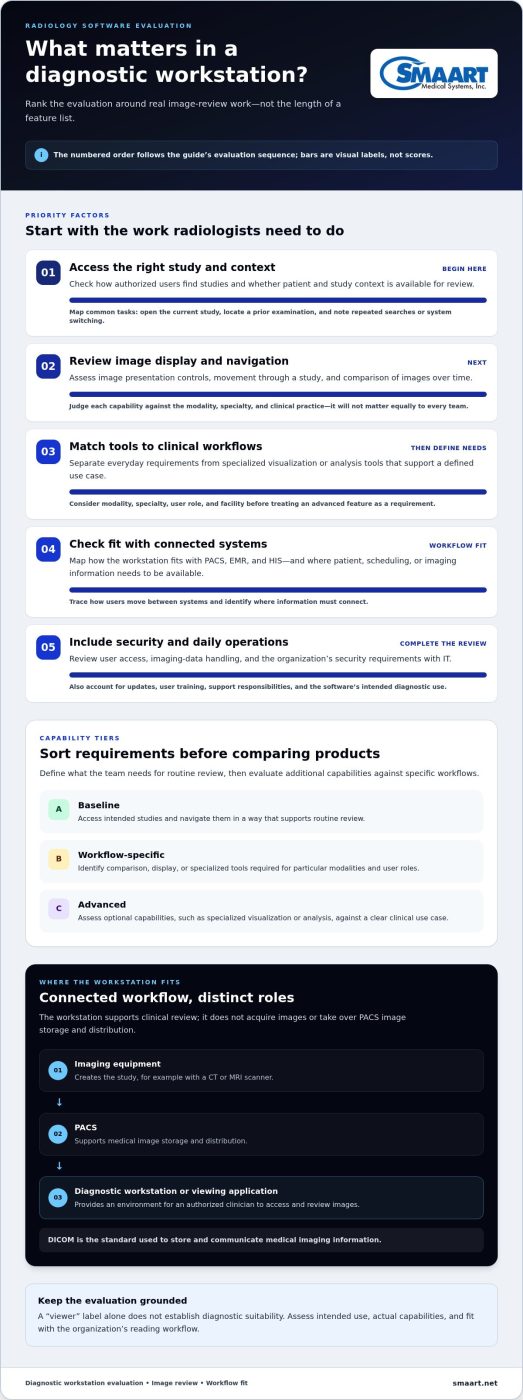
How to Evaluate Diagnostic Workstation Software Before Adoption
A structured evaluation helps teams move beyond feature lists and test whether diagnostic workstation software fits real clinical and operational needs. Involve radiologists, imaging operations, clinical leadership, and IT from the outset. Each group sees different friction points, from study review to system connections and ongoing ownership.
Map clinical and operational requirements first
Document who will use the software, what they need to do, and which systems support those tasks. Include radiologists and other relevant users, imaging operations staff, clinical decision-makers, and IT representatives. Capture current workflows before proposing changes so requirements reflect actual practice rather than assumptions.
- Users and roles: Identify who reviews images, supports imaging operations, and manages connected systems.
- Workflows: Record how users access studies, find relevant patient context, and move between routine tasks.
- Dependencies: Note existing PACS, EMR, and HIS connections, along with other system handoffs that affect the workflow.
- Priorities: Classify each requirement as essential, specific to a workflow or modality, or optional for later consideration.
Make requirements observable. Instead of writing “easy to use,” describe the task a user needs to complete and what a workable process looks like. For example, specify how a user should locate a study and what patient or study context needs to be visible during review. This gives the team a shared basis for assessing fit.
Validate workflow fit and prepare implementation
Use representative scenarios to test assumptions before a broader rollout. Have a radiologist walk through locating and opening a relevant study, while imaging operations staff review the associated workflow and IT examines system handoffs. Record where users need clarification, repeat steps, or rely on information from another system.
- Review realistic tasks: Select common workflows that reflect actual users, modalities, and study access needs.
- Capture feedback: Ask participants what supports the task and where the process creates uncertainty or extra work.
- Resolve dependencies: Document integration questions, access responsibilities, and governance decisions for the implementation team.
- Prepare adoption: Assign operational ownership and plan user training around the workflows people will perform.
Keep unresolved questions visible. A clear record of assumptions about PACS, EMR, and HIS connections helps prevent technical and operational issues from surfacing only after rollout. For broader planning around connected imaging workflows, the integrated RIS and PACS strategy guide offers a useful companion perspective.
With requirements and workflows mapped, assess how image management, scheduling, and sharing fit into the wider environment. Explore SMAART’s radiology software as you plan a connected imaging workflow.
How SMAART’s Radiology Software Fits the Diagnostic Workflow
Evaluating diagnostic workstation software is one part of planning a connected imaging workflow. Image review, image management, scheduling, and image sharing are related, but each serves a distinct need. SMAART’s radiology software addresses several of these workflow areas through separate offerings, helping hospitals and clinics consider how each role fits alongside their clinical reading environment.
Connect image management with radiology operations
SMAART-PACS supports medical image storage and distribution within the radiology environment. This is a different responsibility from the workstation environment where authorized professionals review images. Keeping the roles distinct helps teams define what they need from image management and what they need from diagnostic viewing.
SMAART-RIS manages patient data and clinical scheduling. It supports the operational side of the radiology workflow, organizing patient and appointment information rather than replacing image storage or diagnostic interpretation. PACS and RIS therefore address distinct parts of imaging operations.
Connections to the wider clinical environment matter, too. SMAART’s software is designed to integrate with existing EMR and HIS platforms. When planning workflows, teams can consider how image management and radiology operations relate to those systems, with input from relevant clinical and IT stakeholders.
- SMAART-PACS: Medical image storage and distribution.
- SMAART-RIS: Patient data and clinical scheduling.
- EMR and HIS integration: Designed to connect SMAART software with existing platforms.
Extend access through medical image sharing
SMAART-SHARE supports cloud-based medical image sharing. Sharing is distinct from PACS image management and diagnostic interpretation. It supports image access and exchange, while PACS manages image storage and distribution, and diagnostic review takes place in an appropriate clinical reading environment.
Separating these functions makes planning clearer. A team can identify where images are stored, how they are shared, how scheduling and patient data are managed, and which environment supports diagnostic review. That map helps avoid treating one platform as if it automatically covers every part of the workflow.
As you assess how these pieces fit your organization, consider current systems, user needs, and handoffs between imaging operations and clinical review. SMAART’s image management, scheduling, and cloud-based sharing offerings can be considered as distinct parts of your imaging workflow.
Build a More Connected Imaging Workflow
Turn your evaluation criteria into a practical workflow plan. Identify where diagnostic workstation software needs to connect with image management, radiology operations, and clinical systems, then align stakeholders around the tasks that matter most. Mapping those handoffs helps your team focus on fit rather than feature volume.
SMAART-PACS supports medical image storage and distribution, SMAART-RIS manages patient data and clinical scheduling, and SMAART-SHARE provides cloud-based medical image sharing. Each addresses a distinct part of the imaging environment, helping organizations consider how their systems can work together.
Explore how these solutions fit your organization’s imaging workflow. Explore SMAART’s radiology software solutions to plan a more connected approach.
Frequently Asked Questions
Is diagnostic workstation software a medical device?
It can be, depending on its intended use and functions. Software intended to support diagnosis or analyze medical images may fall under medical-device oversight, while tools intended only for general viewing may be treated differently. Classification is not determined by the word “workstation” alone. Before adoption, review the software’s stated intended use and applicable regulatory information with your organization’s clinical, compliance, and IT teams.
Can a radiologist use diagnostic workstation software remotely?
Yes, if the software’s deployment supports remote access and the organization authorizes that use. Remote availability alone does not establish that a particular setup is suitable for diagnostic interpretation. A radiology team should consider the intended use, access controls, workstation environment, network conditions, and organizational policies. For example, reviewing images from another facility may involve different technical and governance requirements than accessing the same system inside a reading room.
Does diagnostic workstation software require a dedicated computer?
Not always. Some diagnostic workstation software runs in a dedicated, configured environment, while other viewing approaches may work through a browser or shared computing setup. The appropriate arrangement depends on the software’s intended use, the clinical task, and the organization’s technical requirements. Consider how devices are managed, who can access them, and whether the setup supports the required workflow before deciding that every reader needs a separate computer.
How many monitors does a diagnostic workstation need?
There is no one monitor count that suits every radiology workstation. The number depends on the user’s tasks, modality, software layout, and how the organization configures its reading environment. A team reviewing multiple image series or reference information may have different workspace needs from someone completing a narrower task. Define the required workflow, then assess the display arrangement against applicable clinical and technical requirements rather than relying on a universal number.
Can diagnostic workstation software work with an existing PACS?
It may, but compatibility depends on the systems’ technical interfaces and the workflow the organization needs. The evaluation should cover how users reach studies, whether relevant image and patient information can move between systems, and how responsibilities are divided. For instance, a facility may retain its current PACS while evaluating a separate viewing environment. IT and imaging operations should document interface assumptions and test representative workflows before implementation.
What internet connection does browser-based diagnostic viewing need?
There is no single connection speed that fits every browser-based viewing setup. Requirements depend on factors such as image-study size, network performance, the viewer’s architecture, and how many users access it at once. Assess the connection in the environments where staff will work, including locations with different network conditions. Test representative studies and tasks, and review the software’s technical requirements with IT before relying on browser access for clinical workflows.